


Add your M3U link or Xtream Codes login, and let Good IPTV Player turn your playlist into an organised library with posters, categories and a TV guide. The app provides no content; it only plays the playlist you add. Available on the App Store for iPhone and iPad; Android and Apple TV versions are coming soon.
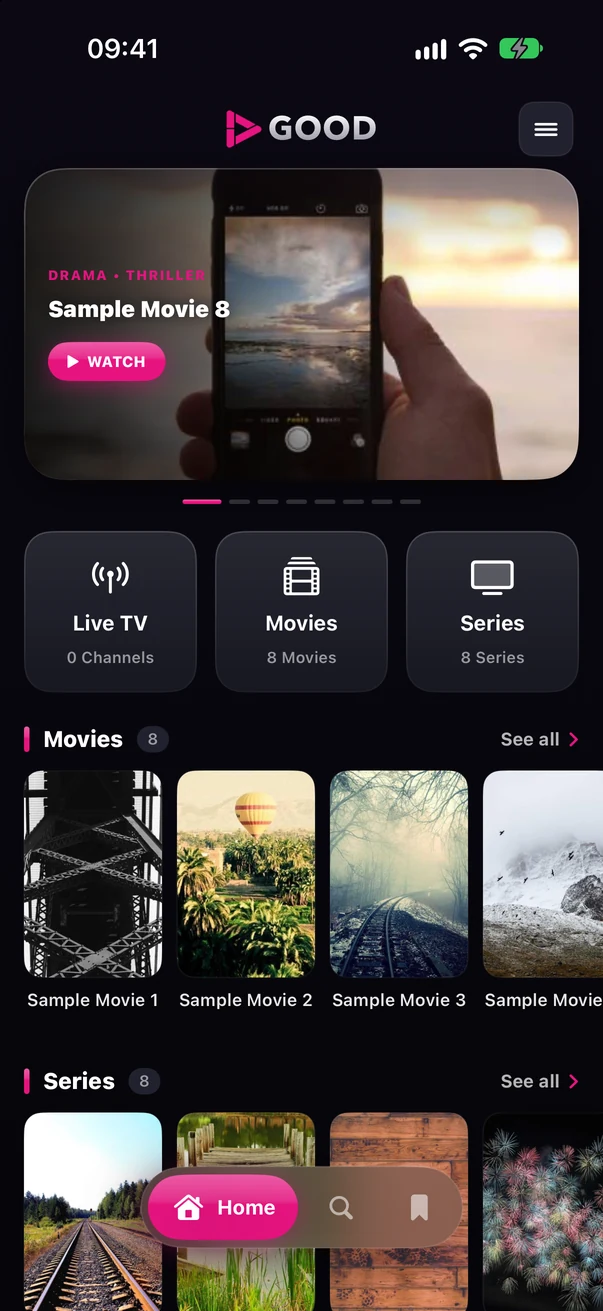
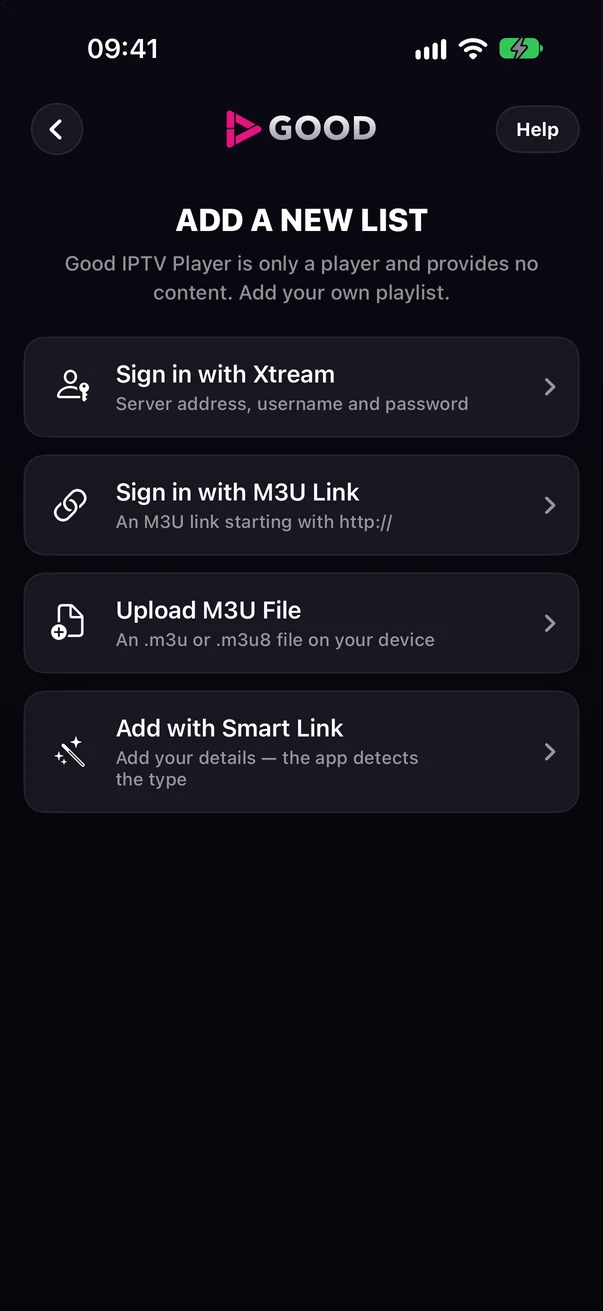
Choose the method that matches the details you received from your service provider: Xtream Codes login, M3U link, M3U file or Smart Link.
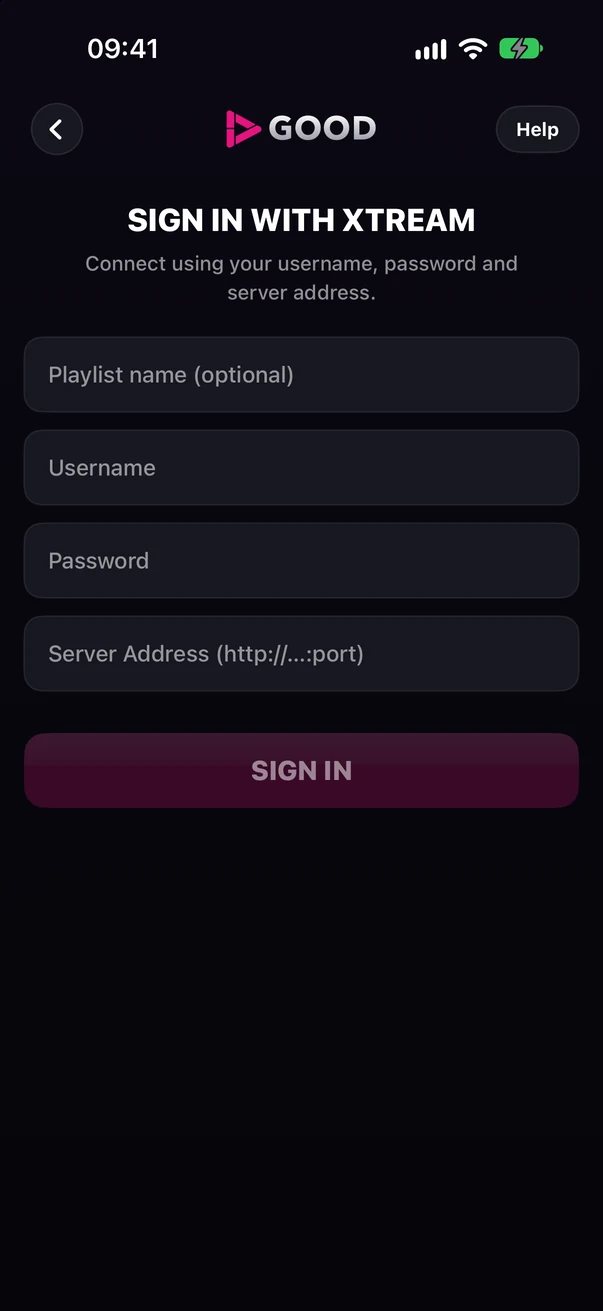
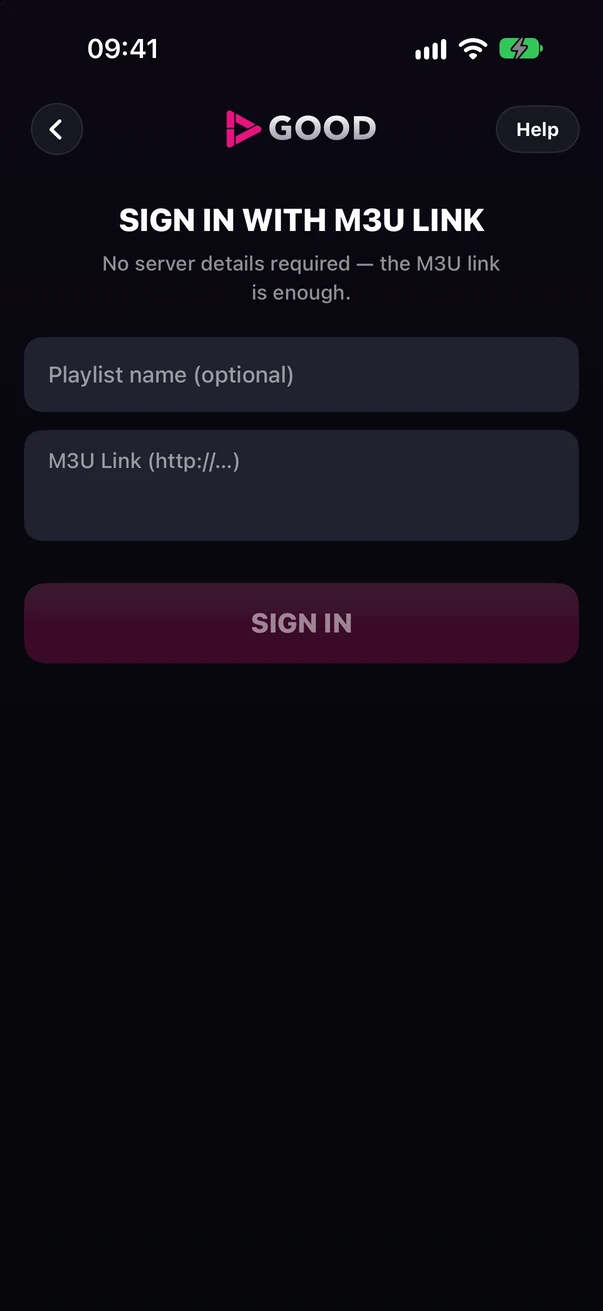
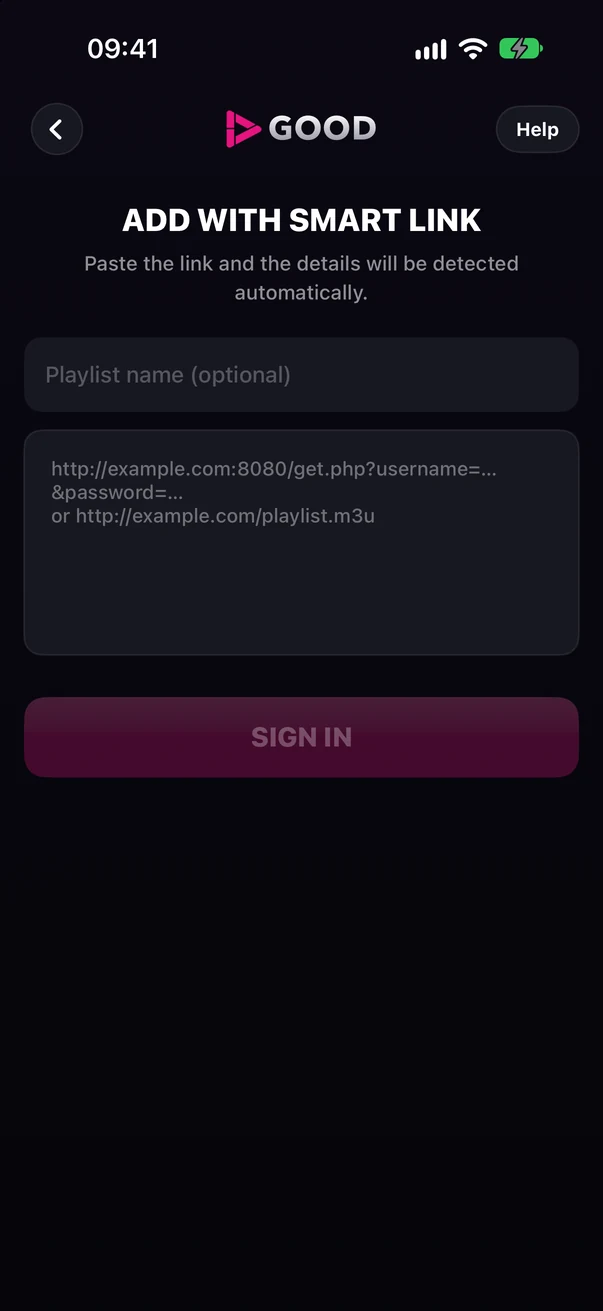
Your playlist password is stored encrypted. Good IPTV Player does not provide channels, streams or content.
Your playlist becomes a library with posters, title details and categories. With Premium, you can customise your home screen layout and save it separately for each profile.
Reorder the rows and hide the ones you don’t use. The poster area and category cards always stay in place.
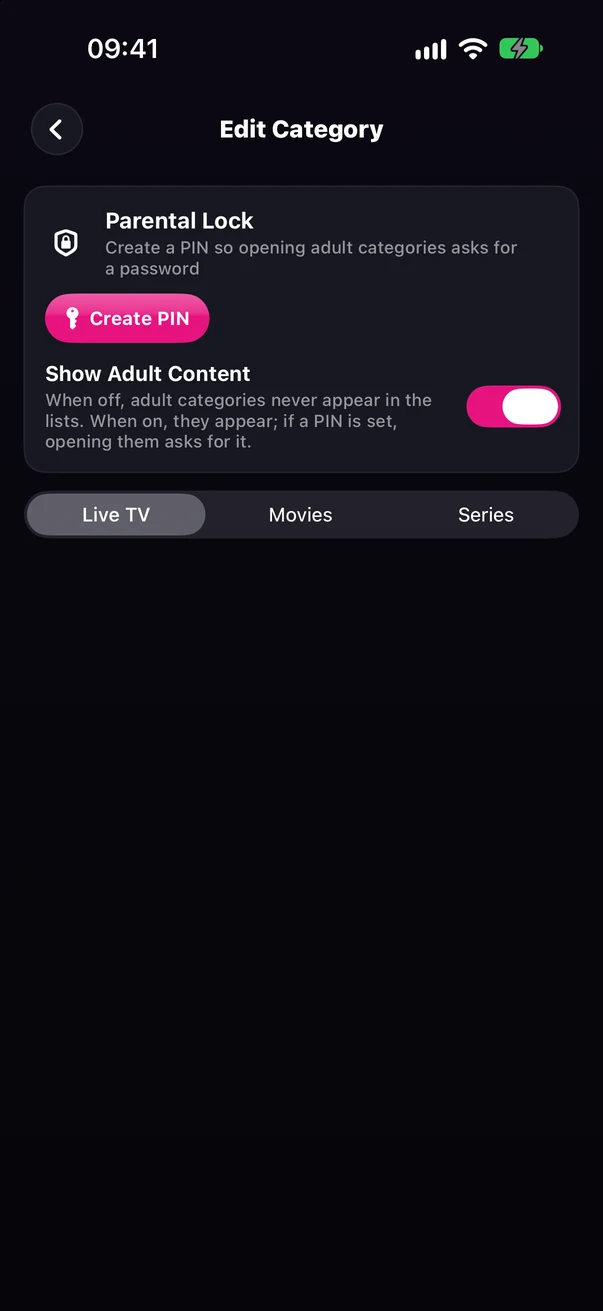
Hide the categories you don’t want and change their order. Your preferences are saved separately for each playlist and profile.
If your playlist provides them, the year, runtime, genre, rating, synopsis and cast are shown together on the details page.
Search live TV, movies and series at the same time; results appear as you type.
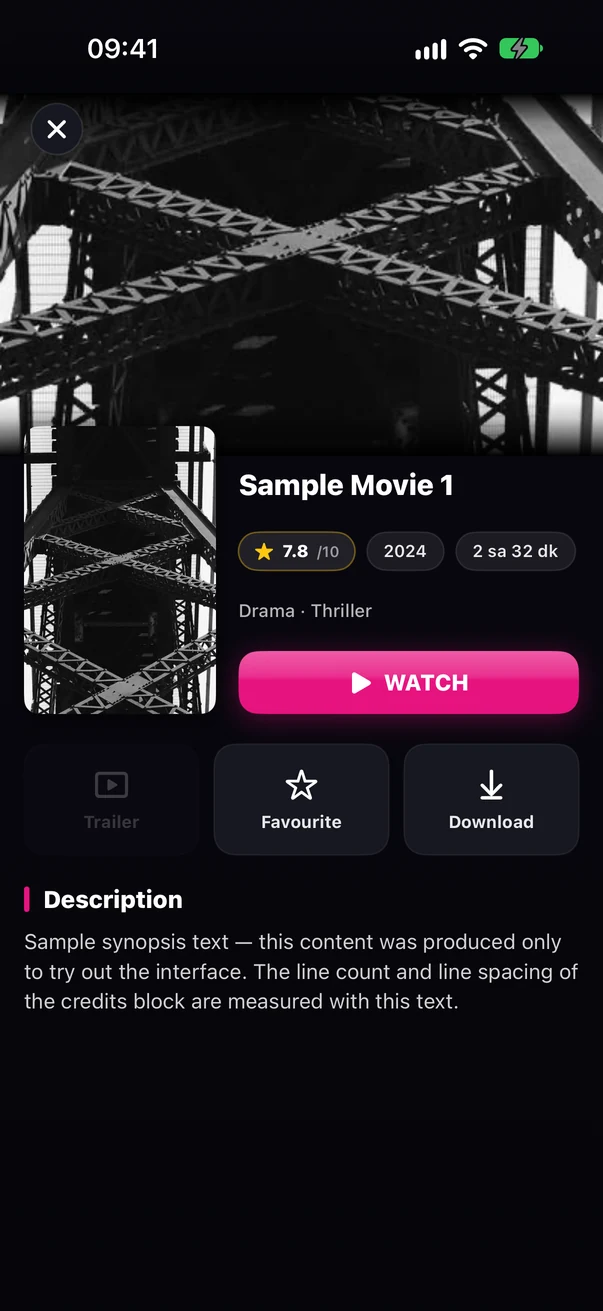
Rating, year, runtime and genre on a single line, with the synopsis and cast below. This information depends on the data your playlist provides.
Where a trailer is available, you can watch it before you start playback.
Download movies and episodes to your device, where your service provider allows it, and watch them without an internet connection.
Add the titles you like to your favourites and access them on every device where you sign in with your account.
When the TV guide is turned on, the bottom strip of the channel card shows the programme currently on air and the time remaining.
TV guide data comes from your playlist’s service provider. If your provider does not supply this data, the app states this clearly; it does not generate estimated data for your own playlist. The demo mode on Apple TV and Android TV shows a sample programme schedule.
Good IPTV Player offers multiple player engines to improve compatibility with different stream formats. Your choice takes effect immediately; the next stream you open plays with the engine you selected.
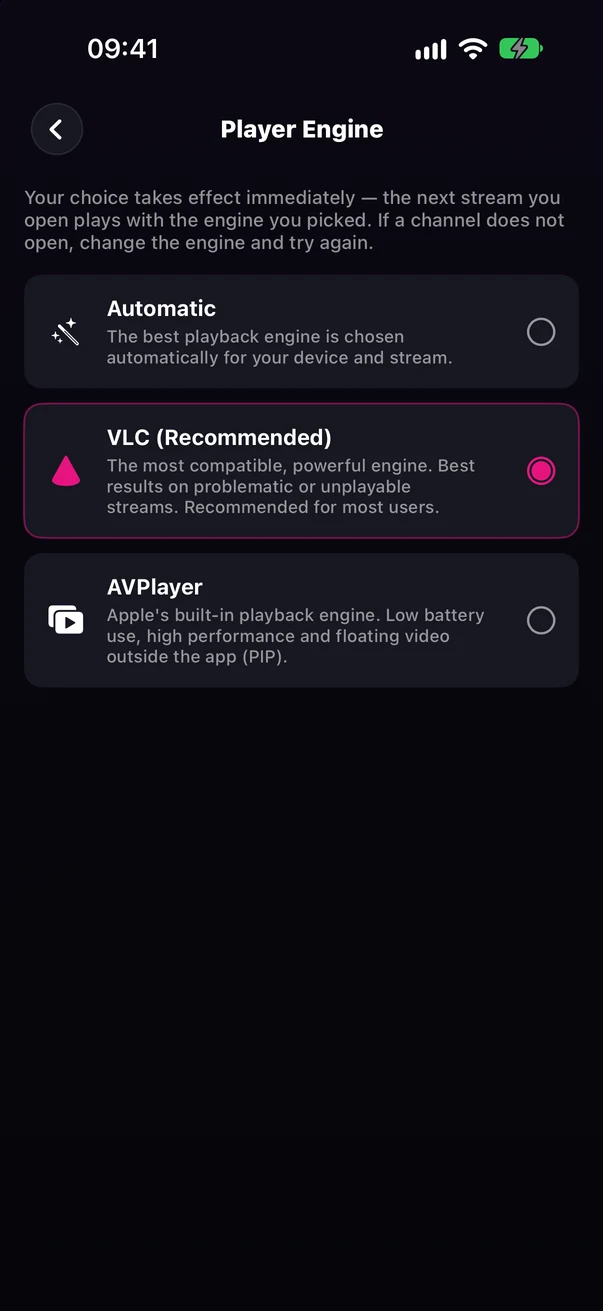
It gives the best results with problematic streams or streams that won’t open, and it is recommended for most users; it is the default engine. Audio Enhancement modes work with this engine.
It offers low battery use, high performance and picture-in-picture (PIP) support. With compatible streams, it uses your device’s hardware.
The most suitable engine is selected automatically for your device and the stream; if the stream doesn’t open, the app tries again with the other engine.
It tells you separately whether the problem comes from your internet connection, the server or the stream itself, and tries to reconnect when a stream drops.
Choose the buffer setting that suits your connection: Automatic, Low Latency, Balanced or Uninterrupted.
During playback, the resolution, frame rate and active player engine are shown at the top of the screen.
Aspect ratio and playback speed options, double-tap to skip forward or back, swipe to adjust volume and brightness, and a screen lock.
Seven preset audio modes, each tuned to the kind of content you watch. No complicated settings; just choose the right mode.
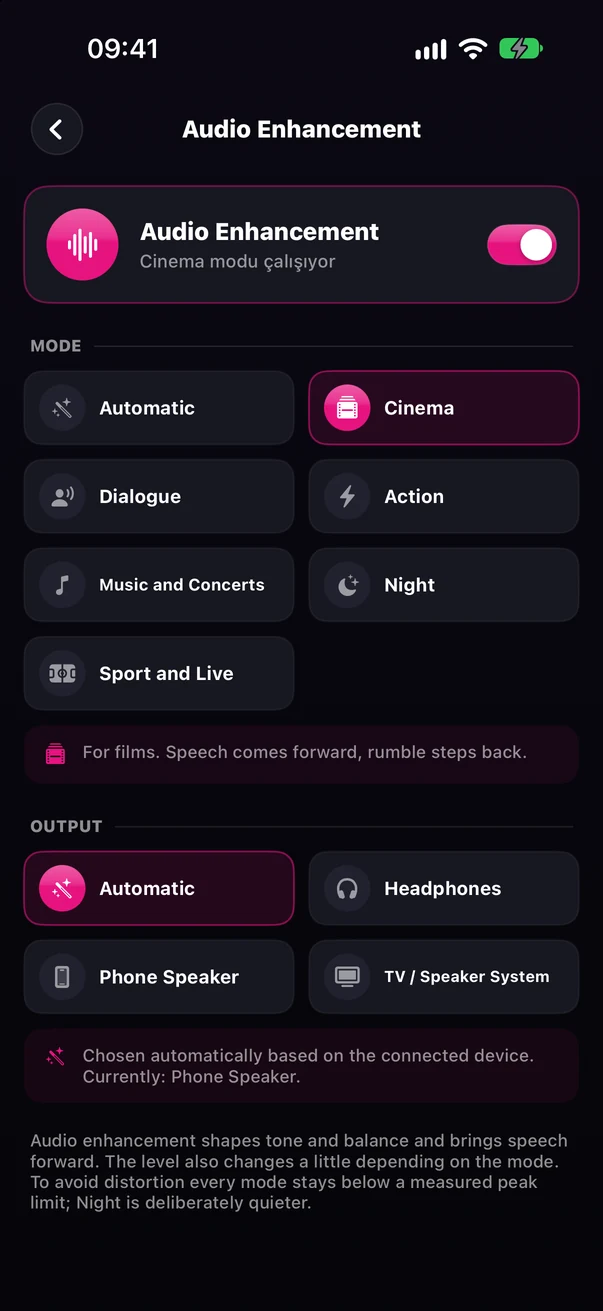
For films. Speech comes forward, rumble steps back.
Series, news, documentaries. Every word comes through without turning the volume up.
For action. Bass and impact come forward; speech stays clear.
Concerts and music channels. Minimal intervention — the natural sound is preserved.
While everyone sleeps. Bass and harsh sounds are reduced, speech comes forward.
Matches and live broadcasts. The commentator is lifted above the crowd noise.
The most suitable mode is chosen automatically for what you are watching, with separate settings for movies, series, live broadcasts, sports and music. Night mode depends on your surroundings, so it is never chosen automatically; you can turn it on manually whenever you like.
While you hold down the compare button, enhancement is switched off and you hear the original sound; when you let go, it turns back on.
Audio Enhancement shapes the tone and balance of the sound and brings speech forward. To prevent distortion, every mode stays below a measured peak limit. Audio modes are available with the VLC engine; if AVPlayer is selected, the app lets you know.
A separate sound balance is applied for headphones, the phone speaker and TV/speaker systems; with the Automatic option, it is set according to the connected device.
If there is no dub in your preferred language, the original audio and subtitles in your preferred language are selected automatically. If there are several audio tracks in the same language, the 5.1 track is preferred.
Subtitle language, size and default behaviour are set once; you don’t have to choose them again for every stream.
With Continue Watching and your recently watched titles, return to unfinished movies and series right where you left off. When you sign in with your account, your watch progress is synced across your devices.
Create a separate profile for everyone in your household. Favourites, watch history, home screen layout and category preferences are kept separately for each profile.
Adult content is never shown in a profile marked as a kids profile; the profile is identified by its own badge.
Adult categories are protected with a 4-digit PIN. If you forget your PIN, you can reset it by verifying with your account.
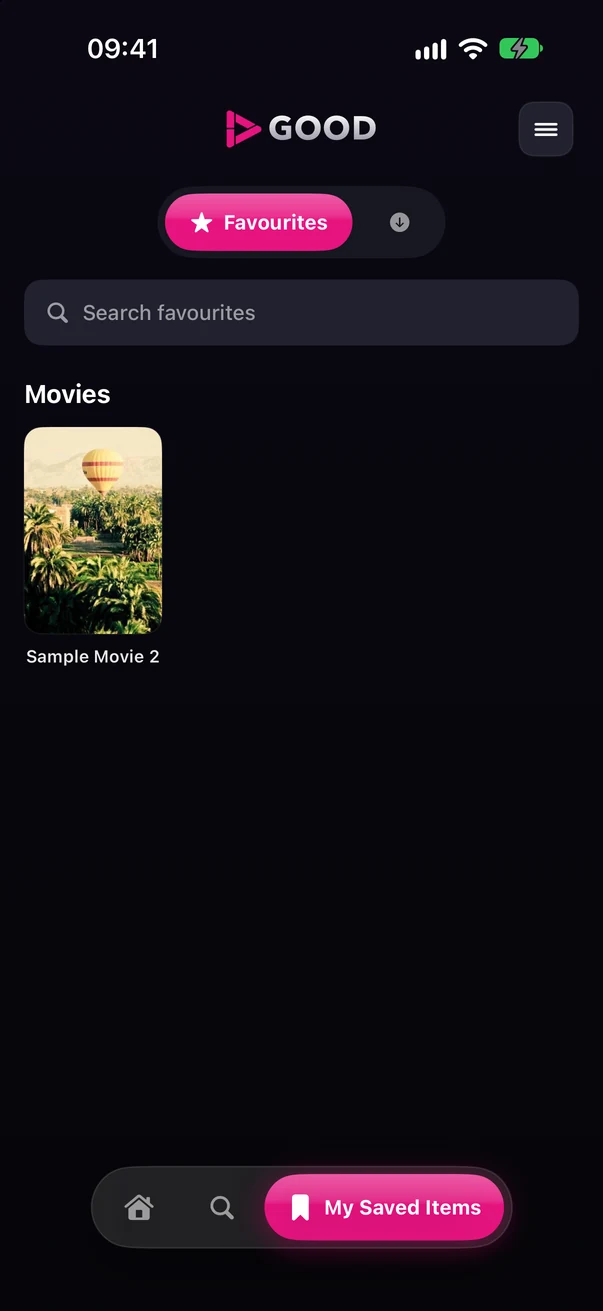
Your favourites and downloads on one screen. When you sign in with your account, your favourites stay up to date on all your devices.
The TV versions are in development. With the same account, you will be able to access your playlists, profiles and watch progress on your TV as well; the interface is designed for use with a remote control.
The TV images were captured in the demo mode of the Apple TV and Android TV apps, with the interface in Turkish; the “DEMO — ÖRNEK İÇERİK” (sample content) badge comes from the app itself. Poster titles and channel names are samples; Good IPTV Player does not provide content.
Good IPTV Player is solely media player software. The app does not provide, host, sell or distribute channels, movies, series, live broadcasts or any other audiovisual content. It is not affiliated with any IPTV service provider and does not recommend any stream sources.
Having the legal right to use the playlists added to the app, and the content accessed through them, is entirely the user’s responsibility. Unauthorized use of copyrighted content is not supported. For details, see the Terms of Use and the Copyright and Content Policy.
No. Good IPTV Player is only a media player. It does not provide or sell any channels, movies, series or audiovisual content, and it does not act as an intermediary for such content. The content you play comes from the playlist you add and from your service provider; it is your responsibility to have the legal right to access this content.
No. No IPTV subscriptions, playlists, accounts or servers are sold, recommended or promoted in the app or on our website. Premium membership only unlocks the app’s software features.
When you use the app on a phone or tablet without an account, your playlists are stored only on your device, and passwords are kept in your device’s secure storage. When you sign in with your account, your playlists are processed on our server so they can be synced across your devices: the playlist password is stored encrypted, while the playlist name, server address and username are kept on a server to which access is restricted by authorization, and may be viewed by the authorized administrator for support purposes. When you sign out of your account on a device, the playlists belonging to your account are removed from that device for your security; your account and your data on the server are not deleted. Playlists you added without an account are not deleted when you sign out.
Yes. The app can be used without an account. An account is required to sync your playlists, favourites and watch progress across your devices.
First check your internet connection and your service provider’s status, then change the player engine in Settings and try again. The app tells you separately whether the problem comes from your internet connection, the server or the stream. Problems with the stream source are the responsibility of your service provider.
TV guide data comes from your playlist’s service provider and is supported for Xtream connections. If your provider does not supply guide data, the app states this clearly.
Monthly and yearly subscriptions are available, as well as a lifetime option with a one-time payment. Current prices are shown on the App Store. Subscriptions renew automatically and can be cancelled at any time in your App Store account settings.
The Apple TV version is in development and not yet available. Once it is released, you will be able to connect by signing in with your account in the app on your phone and scanning the QR code on your TV. The Apple TV version will be available with a Premium membership.
 GOOD
GOODOn the App Store for iPhone and iPad. Android and Apple TV versions coming soon. The app contains no ads and can be used without an account.


