The Apple TV version is not an enlarged copy of the phone interface; it is designed from the ground up for use with a remote control. The card in focus stands out, and the category column lines up with the content.

The image was captured in the app’s demo mode, with the interface in Turkish; the “DEMO — ÖRNEK İÇERİK” (sample content) badge comes from the app itself. Poster titles are samples; Good IPTV Player does not provide content.
A QR code appears on your Apple TV screen. Open the Good IPTV Player app on your phone, sign in with your Apple or Gmail account, then tap the QR code button on the start screen and scan the code. Your playlists arrive automatically from your account.
When adding a new playlist on your TV, choose the “Enter on Phone” option. The add-playlist screen opens automatically on your phone; once you enter the details there, the playlist is sent to your TV. Passwords for protected profiles can be entered the same way.
You can explore the app with sample content without scanning a QR code. In demo mode, every page shows the “DEMO — SAMPLE CONTENT” badge; the images on this page were also captured in this mode. Demo mode does not affect your account.
The camera is used only to scan the QR code. If the camera is not available, you can enter the 8-character code manually.
The row order and the rows you have hidden match your home screen layout on the phone. Apple TV uses this layout and adds the numbered “Featured” row at the very top.
Adult content is not shown in the showcase rows.
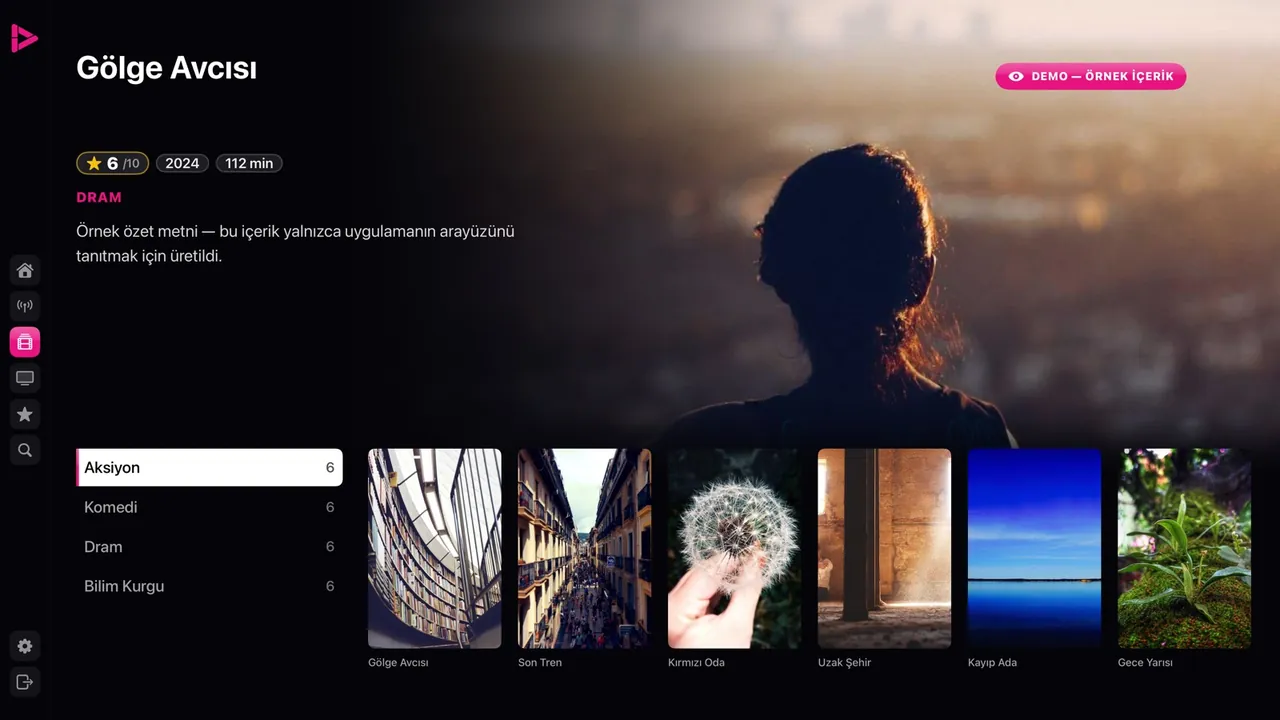
Movies screen. Categories and item counts on the left, posters on the right; details of the title in focus at the top.
The icon strip on the left expands when you move focus to it: Home, Live TV, Movies, Series, Favourites, Search and Settings.
Featured, Recently Added, Continue Watching, Live TV, Movies and Series. Your custom lists also appear as rows of their own.
The MENU button on the remote opens and closes the side menu. When the menu opens, the section you are in is already selected.
The channel in focus plays in a small window. When you select the channel, the picture switches to full screen without interruption.

Live TV screen. Channel info and programme schedule at the top left; category column and channel grid below.
In full screen, swipe right or left on the touch surface to change channels. The channel bar updates instantly; at the end of the list, it wraps around to the beginning.
Channel number, logo, name and category; the current and next programme, a progress bar and the time. Alongside, the resolution, frame rate and selected audio mode are shown.
The current programme is marked with the NOW badge. If your playlist does not provide a programme schedule, the screen shows “No Programme Information” instead.
During playback, the bottom of the screen shows what each button does; while you seek forward or back, the options update to match.
Hold down a direction button or slide your finger on the touch surface. The point you are moving to is shown first and applied when you let go; if you cancel with the MENU button, playback continues from where it was.
Audio/Subtitles, Aspect Ratio, Speed and Audio Mode sit together in a single bar. During live broadcasts, the speed option is hidden; audio and subtitle tracks are listed by language name.
The seven audio modes from the phone are also available in the Apple TV player. Without a Premium membership, the screen shows the message “Audio enhancement is unlocked with Premium.”
A card reading “The stream could not be opened” explains the cause of the error and offers two options: Try Again or Close.

Series page. Season tabs, where you left off in each episode, and a marker on watched episodes.
When you connect with your account, your watch progress is synced across your devices. The series page shows which episode you are on and where you left off.
Choose “Continue Watching” to resume where you left off, or “Start from Beginning” to watch from the very start. Continue Watching is part of Premium membership.
Rating, year, runtime and genre on a single line, with the synopsis and cast below. The Play, Favourite and Trailer buttons sit in the same row.
Director information is shown only in the Apple TV version. This information depends on the data your playlist provides.

Movie details. Title details, the Play · In favourites · Trailer buttons, and the cast.
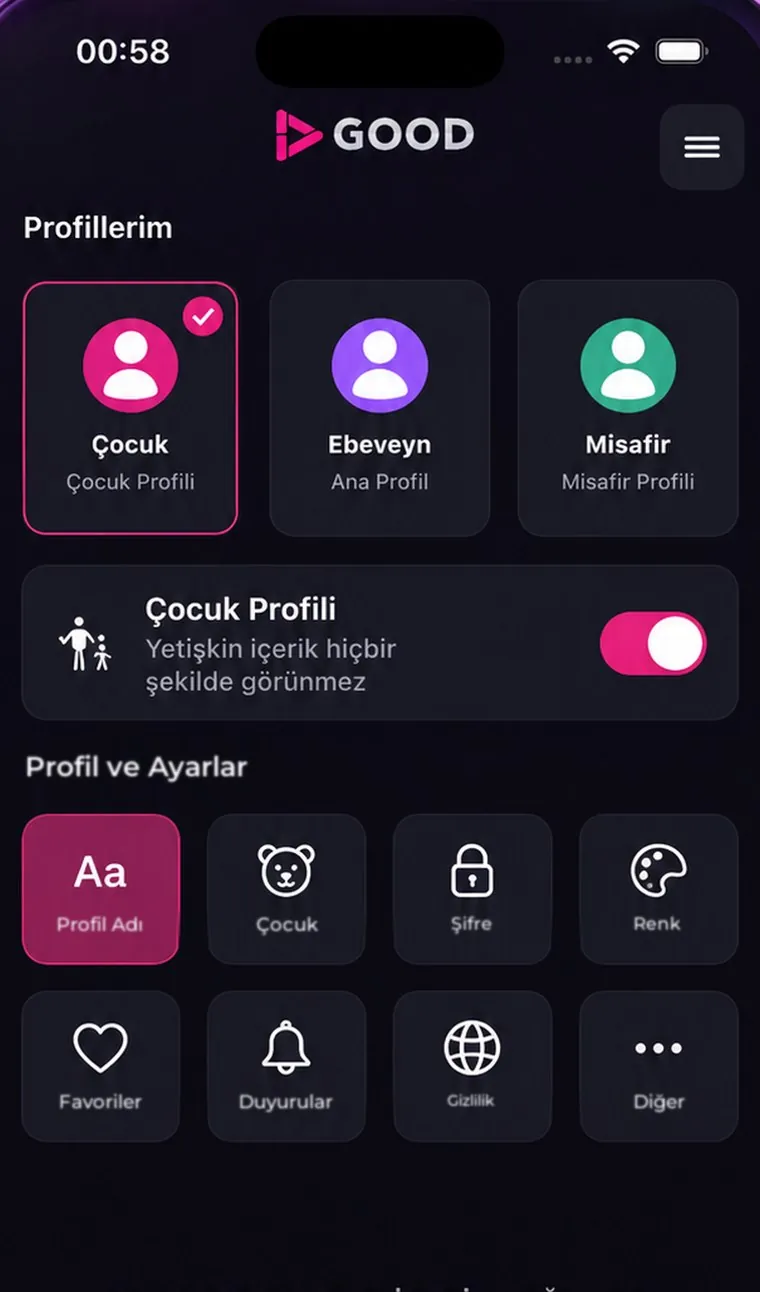
Profiles are created on your phone and selected on Apple TV. Each profile uses its own favourites, watch history and home screen layout; kids profiles are marked with the CHILD badge.
When opening a password-protected profile, you can enter the four-digit password with the remote, or on your phone with “Enter on Phone”.
Adult categories are protected by a full-screen PIN prompt. The digits you enter are not displayed or saved; the side menu is disabled while the PIN prompt is open.
Editing and deleting playlists is handled in the iPhone and iPad app; the Apple TV version focuses on the viewing experience.
Once the Apple TV version is released, all you will need to do is sign in with your account in the app on your phone and scan the QR code on your Apple TV. The Apple TV version will be available with a Premium membership; each device will get a one-time three-hour trial.
No. Purchases are made in the Good IPTV Player app on your phone; when you sign in with the same account, your Premium membership also applies on Apple TV.
Yes. You can add a playlist with Xtream, an M3U link or Smart Link; with the “Enter on Phone” option, you can also enter the details on your phone. Uploading an M3U file is only available on iPhone and iPad.
Channel cards and the info bar show the current and next programme. The full TV guide grid is available on iPhone and iPad.
No. On Apple TV, the “Sign Out” option only ends your session and returns to the welcome screen; your account link, saved playlists and profiles are kept, and you do not need to scan the QR code again. If you want to remove your playlists from Apple TV, use the “Unlink This Device” option in Settings: the playlists from your account are then removed from the device, and you will need to scan the QR code again to use them. In both cases, your account and your data on the server are not deleted.
 GOOD
GOODOn the App Store for iPhone and iPad. Apple TV and Android versions coming soon. The app contains no ads.
Download for iPhone and iPad